

Senior Content Strategist with over 10 years of experience in digital media and technical writing.
How to Go Frame by Frame on YouTube?
Two Simple Ways
Have you ever tried to catch a fast moment in a video but kept missing it? Watching a video at normal speed can make it hard to see specific details. Learning how to frame by frame YouTube videos solves this problem instantly.
Whether you are analyzing a sports play, editing content, or spotting a hidden “Easter egg” in a movie trailer, you need precision. This guide shows you the exact steps to move frame by frame YouTube videos on any device.
Two Simple Ways to Watch YouTube Videos Frame by Frame
There are two main methods to control video playback with high precision. You can use keyboard shortcuts for exact control or adjust the playback speed for a slow-motion view.
Both methods work well, but the keyboard method is the most popular for desktop users. It is fast, easy, and requires no special tools.
Method 1: Using Keyboard Controls to Move Frame by Frame
This is the fastest way to youtube advance one frame at a time. It uses standard hotkeys built into the YouTube player.
1. Navigate to a YouTube Video:
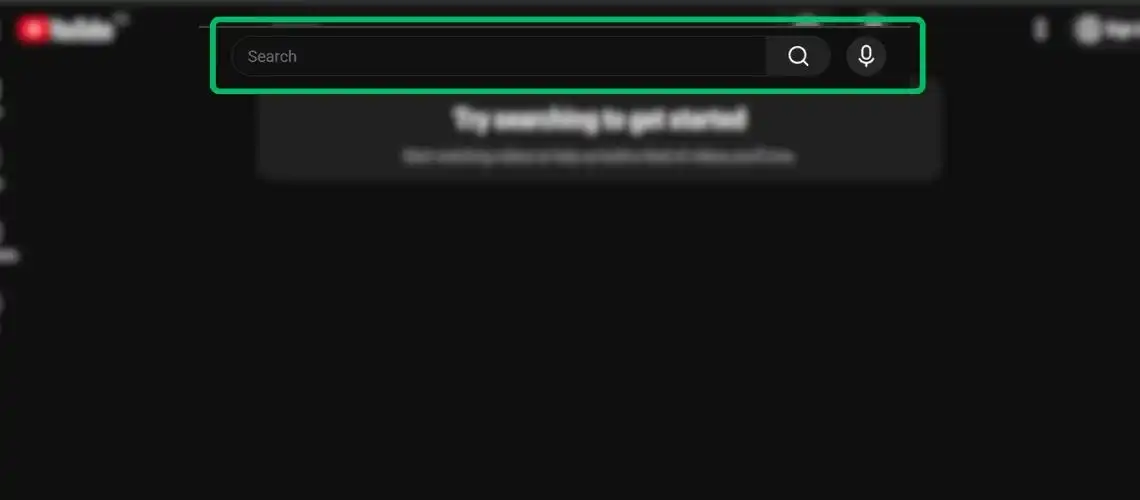
Open your web browser and go to YouTube. Click on the video you want to watch.
Ensure the browser window is active by clicking anywhere on the video player.
2. Pause the Video Before Moving Frame by Frame
You cannot use frame-by-frame commands while the video is playing. Press the Spacebar or click the video screen to pause.
Wait for the play icon to disappear so you have a clear view of the content.

3. Step Through Frames Using the Comma and Period Keys
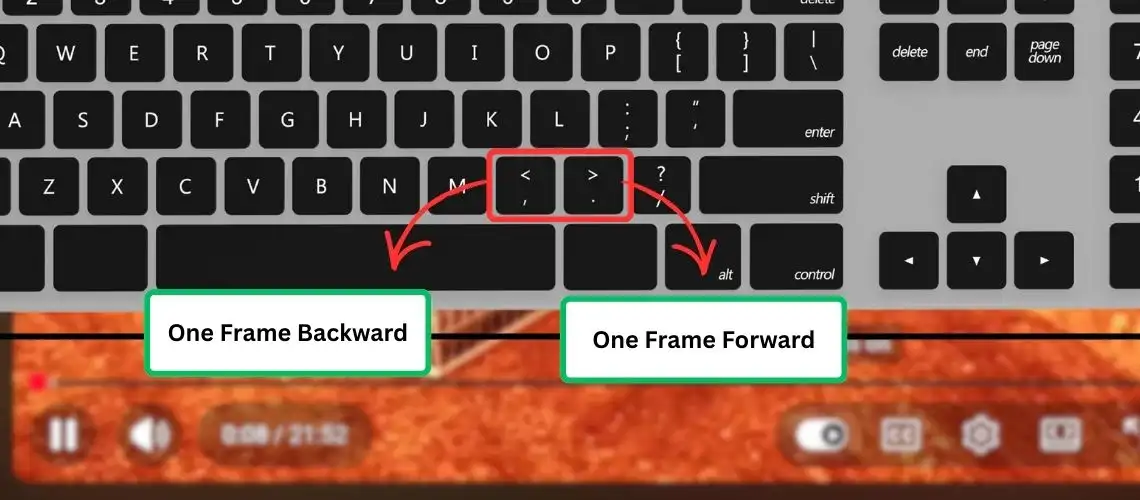
This is the secret trick. To go backward one frame, press the Comma (,) key.
To youtube next frame (go forward), press the Period (.) key. Each press moves the video exactly one frame.
4. Use Arrow Keys for Controlled Frame Navigation (Optional)
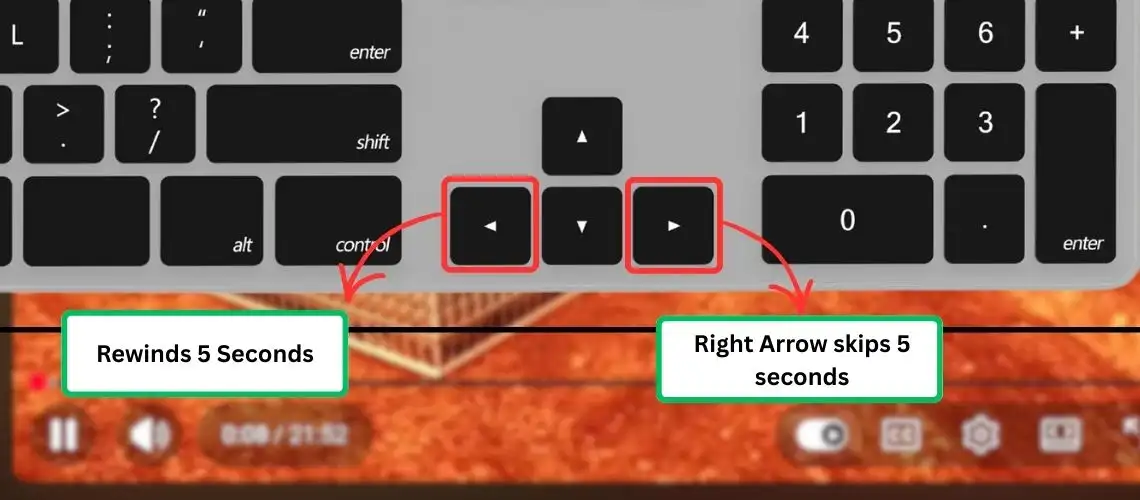
If you need to move faster than one frame, use the arrow keys. The Left Arrow rewinds 5 seconds, and the Right Arrow skips 5 seconds.
This helps you get close to your target scene before using the youtube frame by frame keys.
Method 2: Slowing Playback Speed to Simulate Frame-by-Frame Viewing
If you are on a device without a keyboard, this method helps. It slows down the action so you can see details clearly.
1. Navigate To A Video
Open the video you want to examine. You do not need to pause it immediately, but it often helps.
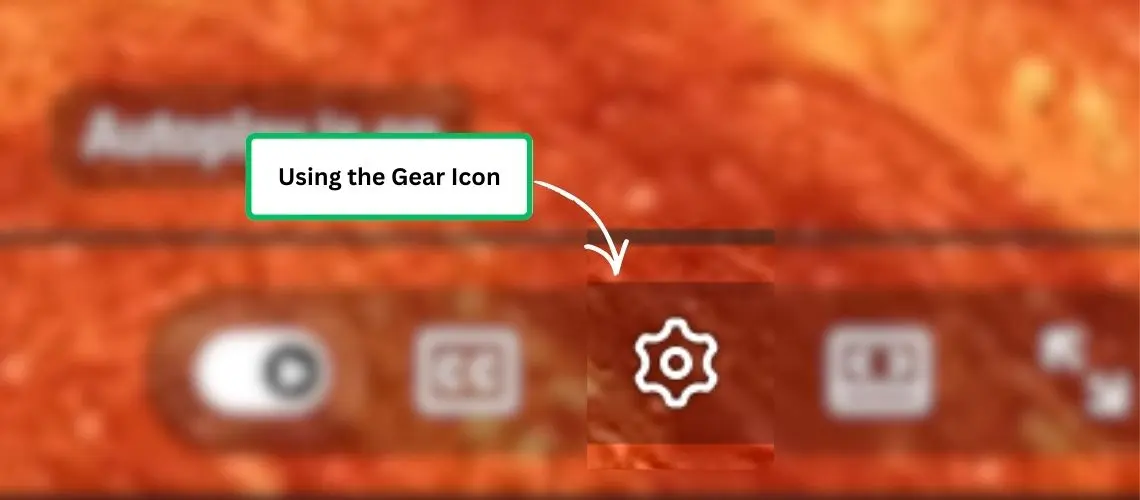
2. Open YouTube Settings Using the Gear Icon
Look for the gear icon (Settings) in the bottom corner of the video player. Click it to open the menu options.
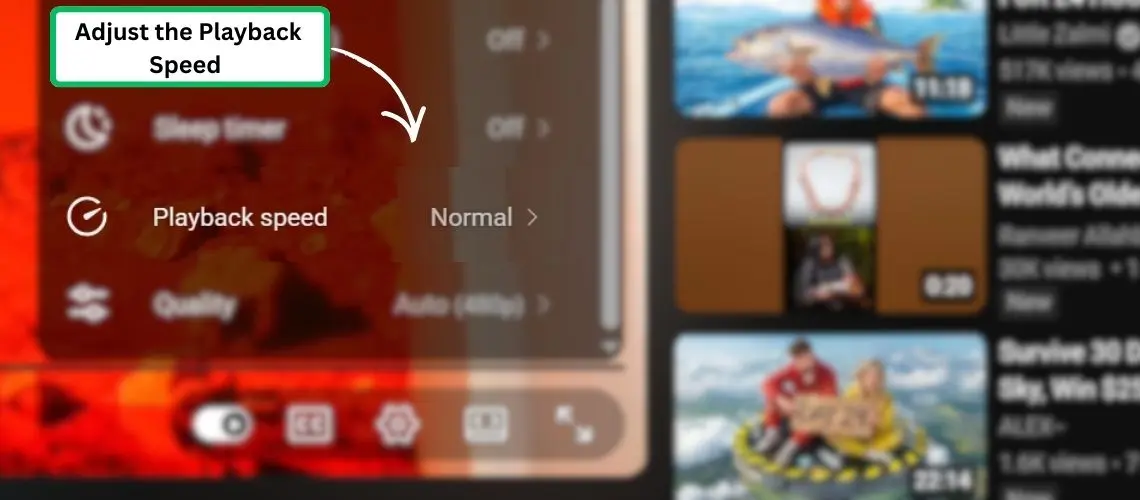
3. Adjust the Playback Speed from the Settings Menu
In the menu, find the option labeled “Playback Speed.” It is usually set to “Normal” by default. Click on it to see more choices.
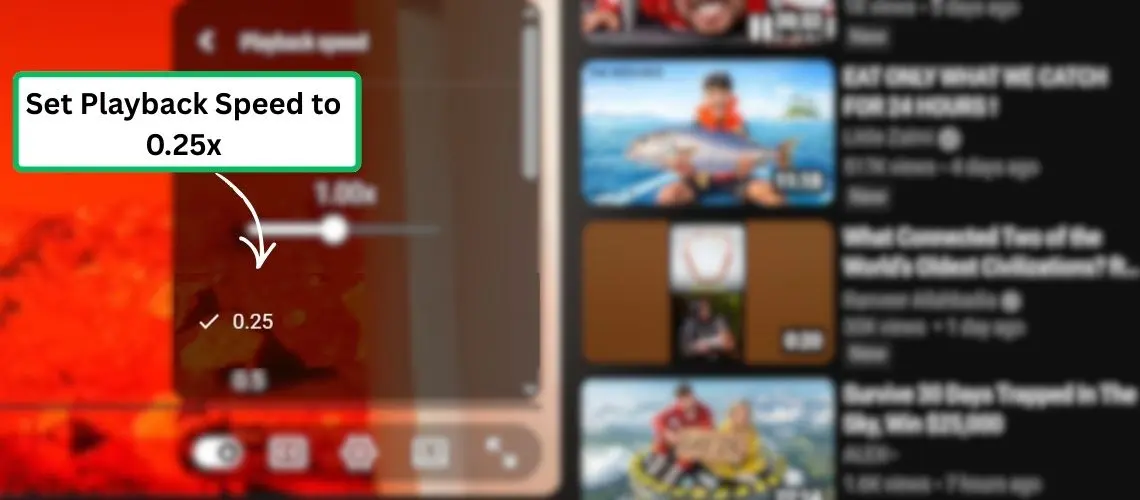
4. Set Playback Speed to 0.25x for Frame-Level Precision
Select “0.25x” from the list. The video will now play at one-quarter of the normal speed.
This is essentially how to frame by frame YouTube without clicking buttons repeatedly. It is great for watching fast movements smoothly.
YouTube Frame by Frame Hotkey
For quick reference, here are the essential youtube frame by frame hotkey controls for desktop users:
- Period key (.): Advance one frame forward.
- Comma key (,): Go back one frame.
- Spacebar / K: Play or Pause.
- J: Rewind 10 seconds.
- L: Fast forward 10 seconds.
How to Go Frame by Frame on YouTube on Phone?
The YouTube mobile app does not have a dedicated button to youtube move frame by frame. However, you can use “Fine Scrubbing” for better control.
Tap the red progress bar (the scrubber) and drag your finger upward. This expands the timeline and lets you scroll through the video with much higher precision.
How to Go frame by frame on YouTube PC?
On a PC, the keyboard method is the standard. Open your video and press the Spacebar to pause.
Use the Period (.) key to move forward and the Comma (,) key to move backward. This works on Chrome, Firefox, and Edge browsers.
How to Go Frame by Frame on YouTube Iphone?
iPhone rely on touch gestures. To see details, pause the video and tap the “Settings” gear icon. Change the playback speed to 0.25x.
Alternatively, touch and hold the progress bar, then slide your finger up. This activates precise scrubbing to help you find the exact moment.
How to Go Frame by Frame on YouTube Android?
Android users have the same options as iPhone users. You can slow the video down to 0.25x speed in the settings menu.
For navigation, drag the red dot on the timeline up to enable fine scrubbing. This helps you youtube one frame at a time manually.
How to Go Frame by Frame on YouTube MAC?
Mac users can use the same shortcuts as PC users. Pause the video using the Spacebar.
Press . (period) to go forward one frame and , (comma) to go back. These keys allow you to frame advance youtube videos instantly.
FAQs
How to go frame by frame on YouTube Shorts?
YouTube Shorts currently does not support the comma and period shortcuts. To view details, you must manually scrub through the video timeline. Pause the Short and carefully drag the slider at the bottom.
How to go frame by frame on YouTube ipad?
Since the iPad uses the mobile app, keyboard shortcuts won’t work unless you connect an external Bluetooth keyboard. Without a keyboard, use the fine scrubbing gesture (slide up on the progress bar) or 0.25x speed.
How to skip frame by frame YouTube?
To skip through frames quickly, simply hold down the Period (.) key. The video will advance rapidly frame by frame, creating a slow-motion effect. Release the key to stop on the exact frame you need.
Share This Post