How to Delete YouTube Comments: Mobile & PC
Step-by-step ways to delete YouTube comments on mobile and PC, find old comments in your history, clear many at once, and remove comments on your own videos as a creator.
In this article
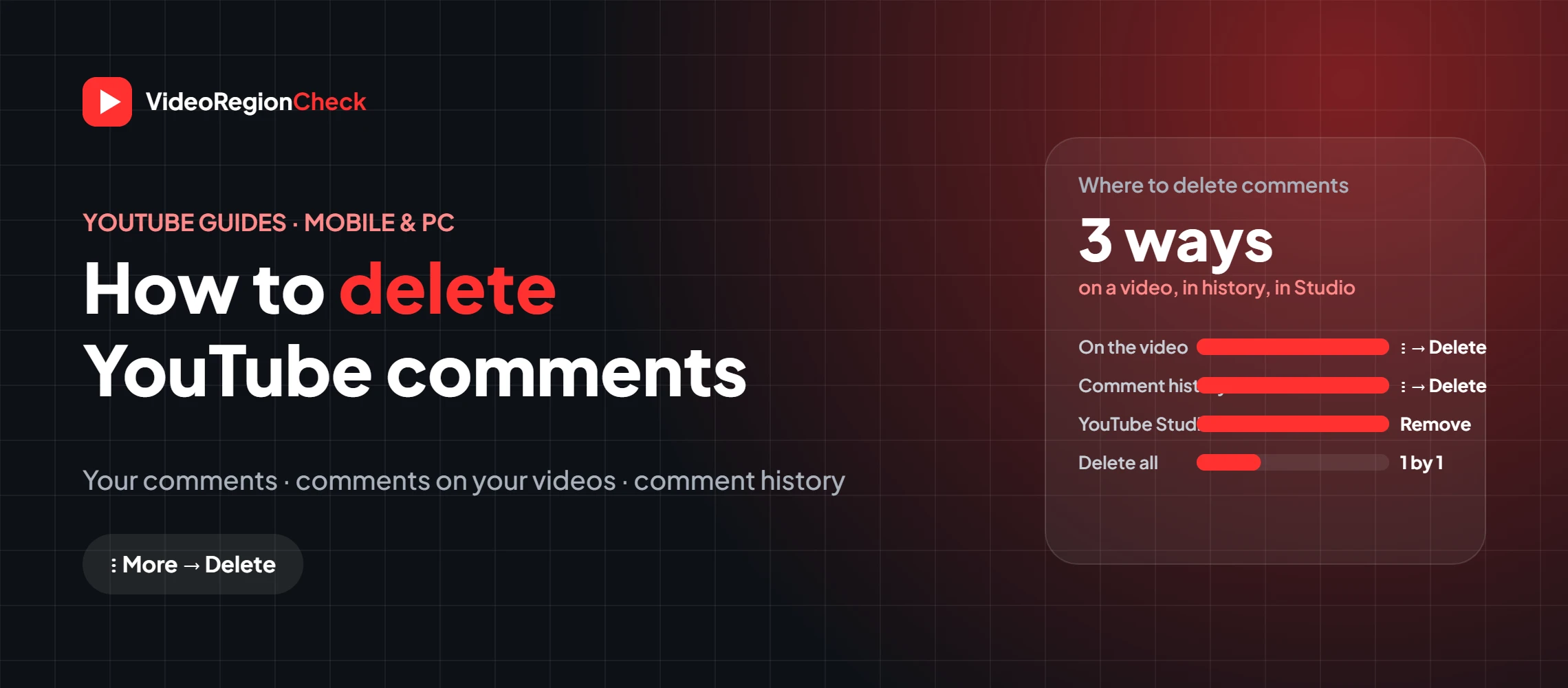
Posted something you regret, made a typo you can’t live with, or want to clean up years of old comments? YouTube lets you delete comments on both mobile and PC in a few taps. Creators can also remove comments left on their own videos. This guide covers every method: deleting a single comment, finding old comments in your history, deleting all YouTube comments, and moderating comments on your channel.
Key takeaways
- Delete your own comment: ⋮ (More) → Delete, on the video or in your Comment History.
- Find every comment you’ve posted under History → Comments.
- There’s no official “delete all comments” button.
- Creators can remove comments on their videos in YouTube Studio and hide users.
- Deleted comments can’t be recovered.
How to delete YouTube comments on mobile
Works in the YouTube app for Android and iPhone:
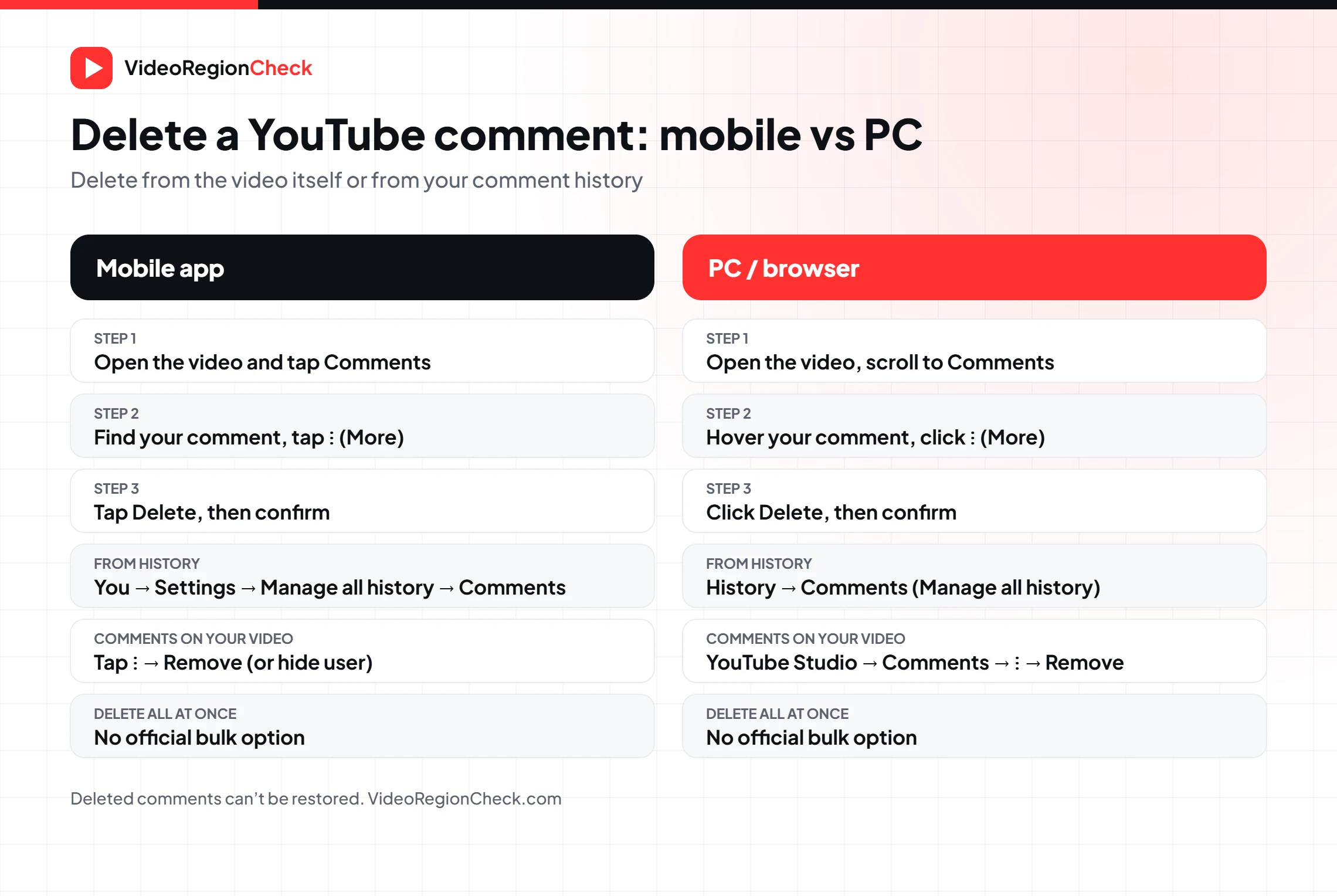
Open the video
Find the video where you commented and tap the comments section below it.
Find your comment
Scroll to your comment. Sorting by “Newest first” can help.
Tap ⋮ (More)
Tap the three dots next to your comment.
Tap Delete
Choose Delete, then confirm. The comment is removed straight away.
How to delete YouTube comments on PC
Open the video in a browser
Go to the video on youtube.com and scroll to Comments.
Hover over your comment
The ⋮ (More) menu appears at the top right of your comment.
Click Delete
Select Delete and confirm. To change the text instead, choose Edit.
Delete comments from your Comment History
Don’t remember which video you commented on? Your Comment History lists all your public comments across YouTube.
| Device | Where to find Comment History |
|---|---|
| PC / browser | YouTube → History (left menu) → under “Manage all history” select Comments |
| Android / iPhone app | You tab → Settings (gear) → Manage all history → Comments |
From there, click the link to a video to open your comment in context, or use the ⋮ / X next to an entry to delete it. Comment History doesn’t include comments on deleted videos or comments removed for policy reasons.
How to delete all YouTube comments
There’s no official button to delete all your YouTube comments at once. Your options are:
| Option | What happens | Good for |
|---|---|---|
| Delete one by one in Comment History | Removes each comment permanently | Cleaning up a few dozen comments |
| Hide your channel | Hides your comments and replies along with your videos and playlists; you can unhide later | Going private temporarily |
| Delete your channel | Permanently deletes your comments, videos, playlists and history | Leaving YouTube completely |
Be careful with browser extensions or scripts that promise bulk deletion. They ask for access to your account and can break when YouTube changes its layout. If you use one, review its permissions and keep your account secure.
Can YouTubers delete comments on their videos?
Yes. As a creator, you control the comments on your own videos (not other channels). Here’s how YouTube delete comments works for channel owners:
Open YouTube Studio
Go to Comments in the left menu. Use the Published tab for live comments and “Held for review” for comments YouTube flagged.
Remove a comment
Click ⋮ next to the comment and choose Remove. On the watch page, you can also tap ⋮ → Remove.
Hide a user from the channel
Choose Hide user from channel to stop someone’s future comments from appearing.
Set up filters
In Settings → Community, add blocked words and links, or choose to hold potentially inappropriate comments for review.
Turn comments off if needed
In a video’s details, set comments to off or to “hold all for review”.
Running a giveaway in the comments? Pick winners fairly with the YouTube Giveaway Picker, and get viewers talking with a YouTube poll instead.
Frequently asked questions
Can you delete YouTube comments?+
Yes. You can delete any comment you wrote, from the video itself or from your Comment History. Channel owners can also remove other people’s comments on their own videos.
How do I delete all my YouTube comments at once?+
YouTube doesn’t have an official “delete all” button. You need to delete comments one by one from your Comment History. Hiding or deleting your channel removes your comments too, but that also affects your videos and playlists.
Can YouTubers delete comments?+
Yes, on their own videos. Creators and their moderators can remove comments, hide users from the channel, hold comments for review and turn comments off. They can’t edit a viewer’s comment or delete comments on other channels.
Where can I see all my YouTube comments?+
Open YouTube, go to History, and select Comments under “Manage all history”. In the app, go to You → Settings → Manage all history → Comments. You’ll see your public comments across YouTube.
Why can’t I find my comment in my history?+
Comments on deleted videos and comments removed for policy reasons don’t show in Comment History. The comment may also have been removed by the channel owner, or you may be signed in to a different channel.
Does deleting a comment delete the replies?+
Deleting a top-level comment removes it from the video, and replies in its thread usually disappear with it. If you only want to change what you said, edit the comment instead.
Can I recover a deleted YouTube comment?+
No. Deleted comments can’t be restored, so copy anything you want to keep first.
The bottom line
To delete a YouTube comment, tap or click ⋮ (More) next to it and choose Delete, either on the video or from History → Comments. There’s no way to delete all comments at once, so clean up from your Comment History one by one. Creators can remove comments on their own videos in YouTube Studio, hide users and filter words to keep the comment section healthy.
Related articles
 BlogHow to Get Verified on YouTube in 2026 (Free)How to get the YouTube verification badge for free: 2026 requirements (100K subscribers), how to apply in YouTube Studio, and…
 BlogHow to Improve YouTube Video Quality on UploadYouTube video quality bad after upload? Learn why videos look blurry, YouTube’s recommended export settings and bitrates, and how to…
 Blog13 Ways to Fix “Something Went Wrong” on YouTubeYouTube keeps saying something went wrong? Try 13 fixes for the app, iPhone, Android, PC and TV, including “Tap to…